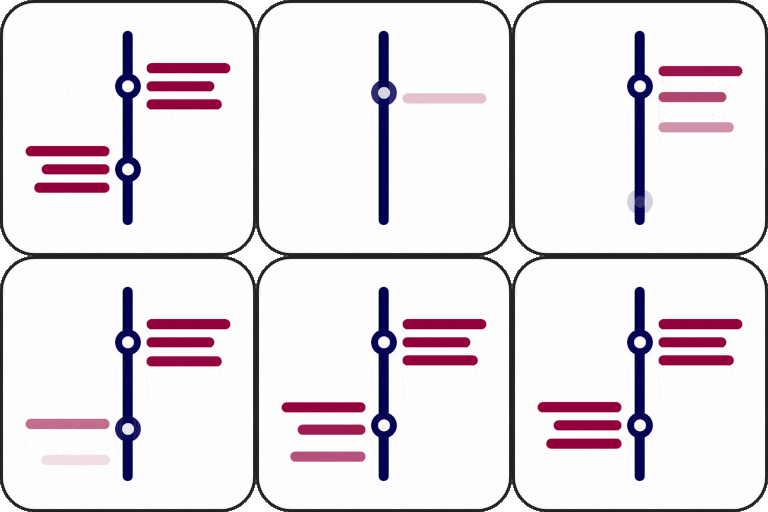
Build timelines inside Elementor
Timeline Widget Pro for Elementor helps you present company histories, achievements, personal journeys, milestones, product roadmaps, and other chronological content directly in the Elementor editor. The widget provides a visual way to arrange timeline stories without writing code.
The Pro edition expands the available layout and content options beyond a basic vertical timeline. It supports vertical, horizontal, and other timeline layouts, allowing you to choose a structure that fits the story and page design. Stories can be arranged to match the flow of your content and presented in a responsive format for different screen sizes.
Layout and story presentation
Use the layout options to create a timeline that suits your content. A vertical format can present a sequence of events, while a horizontal layout can offer a different visual direction for milestones or stages. The widget also supports more timeline layouts, giving you flexibility when planning the structure of a page.
Advanced style settings let you adjust the appearance of individual stories. You can control text size, fonts, and colors for each story, helping distinguish dates, headings, descriptions, and other timeline information within the overall design.
- Create vertical, horizontal, and other timeline layouts.
- Adjust text size, fonts, and colors for each story.
- Add images, videos, or slideshows to timeline stories.
- Load additional stories with Ajax as users scroll down the timeline.
- Migrate existing timeline stories without data loss.
Rich media for timeline stories
Timeline Widget Pro supports more than text-based milestones. Add images, videos, or slideshows to stories to provide visual context for an event, achievement, project stage, or personal experience. This makes the widget useful for company histories, portfolios, product development sequences, event records, and step-by-step narratives.
For long timelines, Ajax Load More can load additional stories as users scroll down. This provides a way to present extended content progressively rather than showing every story at once.
Migration and Elementor workflow
If you already created stories with the Vertical Timeline Widget for Elementor, the Pro edition supports story migration without data loss. This allows existing timeline content to move into the Pro widget while you use the expanded layouts, styling controls, and media options.
All timeline work is handled through Elementor’s visual editor. Add the widget to an Elementor layout, create or migrate stories, choose a layout, and refine each story’s text, media, and styling settings. The widget works with the free version of Elementor and is compatible with all WordPress themes.
Installation and setup
Add Timeline Widget Pro for Elementor to your WordPress installation, then open an Elementor page or template. Insert the timeline widget, select the preferred layout, add stories, and configure the available style and media settings. If you are upgrading existing timeline content, use the story migration capability before refining the Pro presentation.
The responsive design helps timelines display across screen sizes. Whether you are documenting a company history, explaining a roadmap, presenting milestones, or creating a personal journey, the widget provides a visual Elementor workflow for organizing chronological content.


